
Skip to content

Recent Articles

13
Jan

Planning a Website & Organizing Your Content: a beginners guide

Planing and organizing content for a website can feel like a daunting task, especially if you have a lot to organize.The process of deciding what you need and where it should go doesn’t have to be complicated.

flowchart for website planning

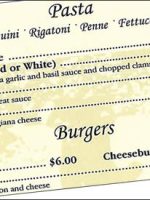
For starters, let’s think of a website as if it were a menu from a restaurant. The menu is usually divided into categories, and sub categories. The beginning of the menu would have your appetizers and then  your main courses. Sub categories of the main course section might be poultry, or seafood. The beverage section at the end could also have sub categories of  beer and wine. You get the picture.

Small website example

Let’s use a relatively common 8-10 page website as an example. Before we even start, we already know what 3 of  the pages are going to be. Let’s define them.

  • Home Page: Often times this may be the first page on a website that a visitor sees (although, not necessarily always the case). At a glance, your home page should easily identify your website’s purpose.

A descriptive ” tag line”  near your company name can be very helpful on the home page. However, more important is the use of descriptive page headings with your targeted keywords. For someone skimming your home page, your page headings should quickly tell the story of what your site is about.

  • About Page - This page usually includes your bio, or in the case of a company or organization there would be some background info.
  • Contact Page - This is an easy one. Here is where you put your contact info, a contact form and possibly a link to get driving directions if applicable.

Do you know your target audience?

In order to answer this question you need to start thinking like a potential visitor. Someone that might be searching for whatever your site happens to be about.

Questions to ask yourself:

  • Who are you building this website for?
  • What are your visitor’s needs?
  • Will your website be able to easily fulfill your visitor’s needs?
  • Are you answering their basic questions?
  • Are you guiding your visitors to do something on your site?
  • Is there a “call to action”?  Ex: Sign-up for a newsletter, make a purchase, submit a contact form, etc.

What pages should you include on your website?

If you gave some of the preceding questions a little bit of thought, you probably have some ideas of what  your pages should be about. Your main pages will likely serve as your main categories.

For instance, if it were a health club website. A main category page might be “Classes.” Using a drop-down menu under the category of “Classes,” you  might list other pages like, “Yoga Classes” or “Aerobics Classes,” etc.

The next step is to prove that you really need the  pages you have chosen to be on your site. Imagine yourself explaining to another person why you absolutely need a specific page on your  site. If you can prove it, then it has merit. Apply this approach to all of your pages when you are deciding what to include on your website.

How do you organize your web pages?

Once your main category pages are selected, it’s time to thematically group the remaining pages under your main categories. For instance, if your business offers lot of different services, then the main category would be “Services.” All of your pages regarding the different services would be grouped under “Services.”

How to send content to your web designer to keep him sane

Organization is the key. When I am starting a new web design project,  I ask the client to send me emails with clearly labeled subject headings.

For instance, if you were to send me content and media files for your “About” page, I would ask that the info be sent in the following manner:

  1. Create content in  MS Word and save the document using the same name of the corresponding web page, ie: “about.doc”
  2. Save the images to be used on a given page using the name of the page with a description, ie:  “about-headshot.jpg”
  3. Send each email with a clearly labeled subject, ie:  Re: “About page – content & images”
  4. Attach the images and Word doc to the same email and send.

Following some of the advice outlined in this guide should help streamline the website planning process for you. If you would like to leave a comment please feel free to do so at the bottom. Or contact me direct if you have any questions.

7
Jul

10 Web design mistakes that every business should avoid

Is bad web design killing your business? You may think your website looks great but what good is it if your potential customers can’t find it through searching?  If you are a business owner building a website yourself, then you should take the time to understand these tips I am putting forth. If you are currently working with a web designer then you may want to have a conversation about the items I have listed below. If you understand and apply these 10 commonly overlooked aspects of designing a website,  your website will be light years ahead of 80% or more of  your competition.

1. A bad “Title Tag”

Your title tag resides in the upper left corner of your internet browser, (see image below).  It should NOT say something like, “Home”, or “Welcome to Your Company Name.” It should also not be duplicated on every page. This extremely important tag is written into the code of your website and is one of the most important indicators as to what your website is about. The text in this tag will be the link that your potential customers will see on the search engine results pages (SERPS). Therefore it should say something very descriptive about your business to make it stand out.  In fact it should be comprised of keywords that your potential customers might search for.

This it where the page title tag resides in the browser

An example of a well thought out Title Tag

Read moreRead more